

Git is a memory card for code. Every so often, you enter a command to save your progress. - Nick White
https://youtu.be/tRZGeaHPoaw?si=or7xGPMKD1BzdTvB
https://youtu.be/RGOj5yH7evk?si=__bHz9PS_d2l0hPu
Have you used Git before?
Yes/No
Installation
- If you have MacOS or Linus, you already have Git
- If you have Windows, you will need to install it
Are Git and Github the same thing?
No, but they are related.
Git is a free and open source version control system (one of many).
Version control
- The tool that tracks the changes in your code over time
- The management of changes to documents, programs, websites, and other information
- Useful in software development, law, etc…
Github is a website
- Where you can host repositories online instead of locally
- This allows you to collaborate in teams and share projects
- Alternatives:
bitbucket,gitlab
Do you know how to use the command line?
If yes, continue.
If no, read 2.3 Command Line.
code editor -> a place where you can write code(like MS word but for code)repository -> project, or the folder where your project is kept
This is the boilerplate provided by Github when creating a repository. Explain what each of these lines does:
echo "# dsx-quartz" >> README.md
git init
git add README.md
git commit -m "first commit"
git branch -M main
git remote add origin https://github.com/jl33-ai/dsx-quartz.git
git push -u origin main
Success
git init
- Creates a Git repository (within your folder).
- Allows you to actually then use all of the functionality.
clone
Success
git clone
- Copy and paste a repository that is hosted somewhere like Github, into a folder on your local machine
git clone <repo_link>
↳ What is a ‘shallow clone’?
add
Success
git add
- ‘Adding’ a file tells Git to keep track of it, and allows you to save it with
git commit.- ‘Adding’ is also known as ‘staging’ or adding the file to the staging area.
- Must be used before you can use
committo save changes (unless you usecommit -a -morcommit -amgit add .orgit add -astages everything (all files)git add my_file.htmlwould only givemy_file.htmlto Git.
commit
Success
git commit
- Tell Git to save your files.
- Basically the ‘save button’ within Git: saves a snapshot of all files (that are being tracked)
- Only saves locally, not the same as pushing
git commit -m <enter_message_here>-mstands for ‘message’- The message should explain the what and why
- If you add a second
-mit adds a description.
Can use git commit -am <message> if the file has already been git add‘ed. -am stands for ‘add’ and ‘message’.
push
Success
git push
- Upload Git commits to a remote repository, such as Github
Success
git push -u origin main
originstands for the local location of the repositorymain(previouslymaster)-uis an optional flag. If included, it sets a default ’upstream branch’. All this means is that the next time you want to push, you can simply typegit pushinstead of the full thing.
pull
Success
git pull
- Download changes from remote repository to your local machine
- The opposite of push
status
Success
git status
- Allows you to see all the all the files that have been updated, created or deleted, but have not yet been saved in a commit.
- You can see which changes have been tracked or are untracked, and which ones are ready to be committed.
White, green, red meaning
How do you check what version of git you are using
git --version
What is the .git directory
On mac you can use la, a proxy for ls -la, which allows you to list all files and directories inside your current directory.
You should be able to see a hidden .git folder which essentially tracks all the changes and commits.
What are SSH keys?
SSH keys
When trying to push to Github, in order to prove that you are actually the owner of the account, you need to connect your local machine to your Github account somehow. This is done using SSH keys.
↳ Okay, how?
ssh-keygen command with the arguments:
-t type of encryption rsa
-b strength of encryption 4096
-C email address example@email.com
Now you have your_key (private) and your_key.pub (public).
The private key must be kept secure on your local machine.
The public key can be seen by anyone, and sits on Github
It is a mathematical certainty that only the private key could have generated the public key, therefore it can be used for authorization.
You can copy your key with pbcopy < ~/.ssh/yourkey.pub
Now, simply add the SSH key to your Github profile on github.com
There are a few more specific steps which can be found here
How do you convert a normal folder into a Git repository?
- Navigate into the folder
- Type
git initinto the terminal - Done.
↳ Now how do you push it to Github?
Currently, the local repository is not linked to any online/remote repository (since we didn’t clone it down from anything). So, we need to do the following steps.
- Create an empty repository on github.com
- Copy the
SSHurl provided - Type
git remote add origin <ssh_link>into the terminal - Check all associated repositories with
git remote -v
What is the difference between adding code to a repository through Github.com and locally, and then pushing it up?
Command Line Git requires the typical process of: git add -> git commit -> git push
Github.com means you are editing the repository directly, and thus only need to press commit. The rest is taken care of.
What is the main branch?
Success
main
- Is the default branch for any repository
- Unless more branches are added, all changes occur on this branch
↳ Adding branches
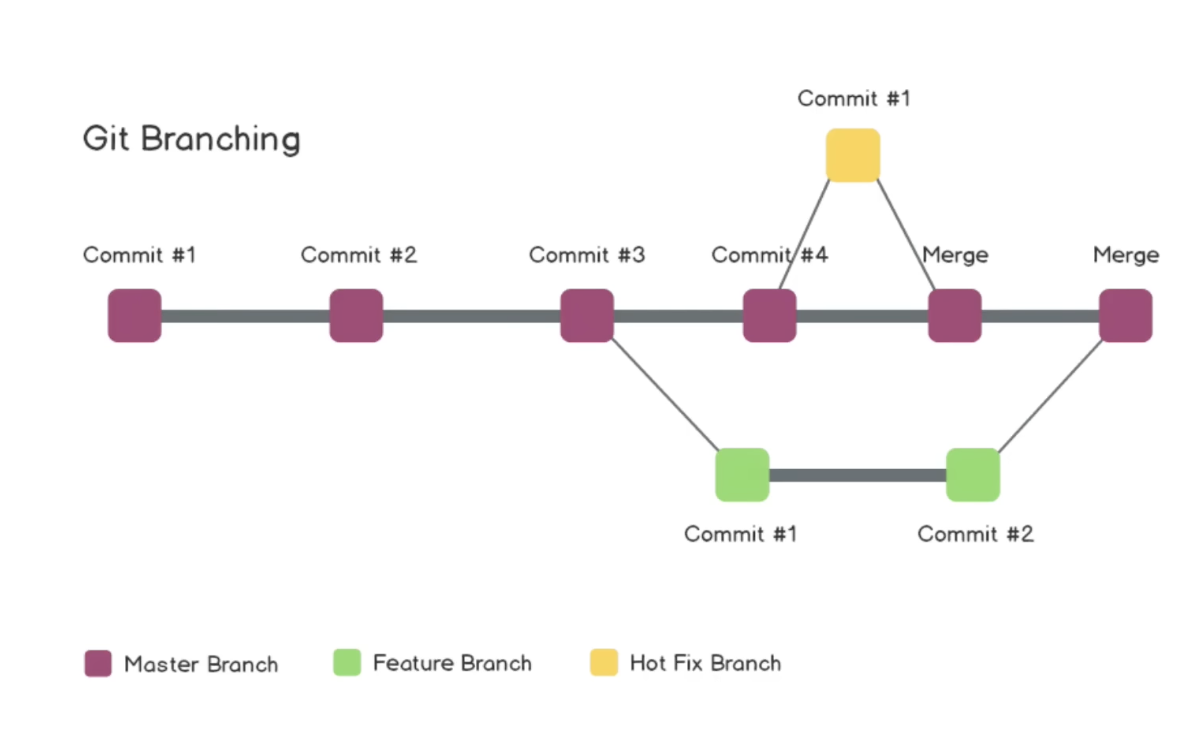
Go through 1, 2, 3
- Each branch is isolated
git branch
Allows you to see all branches, with a star besides the one you’re currently in.
git checkout
Allows you to see a particular branch or commit.
git branch -b <branch_name>
Creates a new branch, with name.
git branch -d <branch_name
Deleted branch
git diff
- Shows the differences between two branches
- Compares two versions of the code
- (visual representation of on the github site)
git merge
git merge master merges the master branch into your current branch
(Incoming changes)
What is a pull request?
Pull request
A request to have your code pulled into another branch
main <- new-branch
Trying to merge new-branch into main
pull
Success
git pull
- Pulls new stuff from Github.com
Merge Conflict
git reset
- Basically undo’s
git addorgit commit
git reset HEAD~n
n is how many steps to go back from the HEAD pointer.
git log
See all commit histories, in descending order
See every time you’ve typed git commit
How do you fork a repository?
- Makes a complete copy of the repository (if you don’t have access to it)
Are you familiar with various licenses?
MIT License (Massachusetts Institute of Technology)
- Short, simple and permissive (permission granted)
- Allows anyone to do whatever with your project, including making and distributing closed source versions
GPL License (General Public License)
- Lets people do almost anything they want with your project, except distributing closed source versions.
BSD License (Berkeley Software Distribution)
- More permissive than GPL, allowing propritary use
- Can be included within proprietary products without inheriting the license
What would be the most appropriate license for X
Backing up your content
On branch v4
Your branch is ahead of ‘origin/v4’ by 3 commits.
(use “git push” to publish your local commits)
nothing to commit, working tree clean
Pulling updates from your repository. You may need to resolve some git conflicts if you’ve made changes to components or plugins.
fatal: couldn’t find remote ref v4
Pushing your changes
Username for ’https://github.com‘:
what does ’git push origin main’ mean explain each word
-
git:- This is the command line tool for working with Git, a distributed version control system.
- It’s the main command that starts off any Git operation.
-
push:- This is a Git subcommand. The
pushcommand is used to upload local repository content to a remote repository. It transfers commits from your local repository to the remote repository.
- This is a Git subcommand. The
from:
3. origin:
- This specifies the name of the remote repository where you’re pushing your changes. By default, when you clone a repository, Git automatically names this remote repository
origin. This is essentially a shorthand or an alias for the URL of the remote repository.
to:
4. main:
- This is the name of the branch you are pushing to on the remote repository. In this case,
mainis likely the default branch of the repository. It’s the branch where your final, stable code lives. In older repositories or in certain contexts, this branch might be calledmaster.
Certainly! Let’s create a hypothetical scenario that will test your knowledge of Git, focusing on common tasks such as creating a branch, making changes, and merging those changes back into the main branch. Here’s your scenario:
Hypothetical Situation: Feature Development in Git
Context: You are working on a project called AmazingProject, which already has a Git repository initialized. Your task is to develop a new feature called feature-awesome.
Tasks:
-
Create a New Branch: Start by creating a new branch for developing your feature. The branch should be named
feature-awesome. -
Make Changes: In the
feature-awesomebranch, you are supposed to create a new file namedawesome.txt. Add some content to it, for example, “This is an awesome feature!“. -
Commit the Changes: After making changes, you need to commit them to the
feature-awesomebranch. Make sure to write a descriptive commit message. -
Switch to the Main Branch: Once you’ve committed your changes, switch back to the main branch of the repository. This is typically called
mainormaster. -
Merge the Feature Branch: Merge the
feature-awesomebranch into the main branch. Resolve any merge conflicts if they arise. -
Push Changes to Remote Repository: Finally, push your changes from the local repository to the remote repository so that your team members can see the new feature.
Questions:
- What commands would you use to accomplish each of these tasks in Git?
- If you encounter a merge conflict, how would you resolve it?
- How would you ensure that your
feature-awesomebranch is up-to-date with the main branch before merging?
This scenario tests basic Git operations like branching, committing, merging, and handling merge conflicts. It’s a typical workflow for feature development in many software projects.